
GovPay (EFTPS)
GovPay (EFTPS) is a tax payment solution integrated with Tax1099 that allows users to create, authorize, and track supported federal and state tax payments electronically. The platform enables businesses, accounting professionals, and organizations to manage their tax payment activities while securely using saved entity, tax account, and bank account information.
GovPay provides a centralized solution for managing tax payments, tracking payment statuses, and maintaining payment records. Users can access GovPay through the Tax1099 application and select a subscription plan based on their payment requirements.
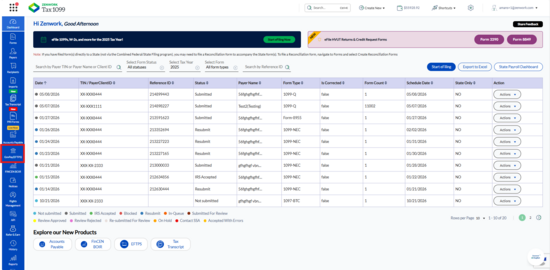
Navigate to the Tax1099 interface and click GovPay (EFTPS) from the left navigation pane to access the GovPay application.
To access GovPay (EFTPS) and view the subscription plans, perform the following steps:
-
Log in to the Tax1099 application.
-
From the left navigation pane, click GovPay (EFTPS).
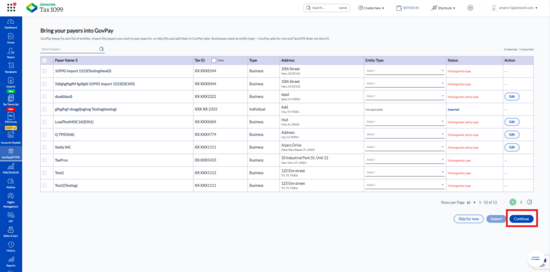
 The Bring your Payers into GovPay page appears, displaying the existing payers available in your Tax1099 account.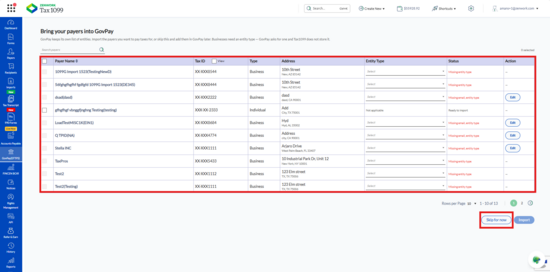
-
Review the payer details displayed in the following columns:
-
Payer Name: Displays the name of the business or individual.
-
Tax ID: Displays the masked taxpayer identification number.
-
Type: Displays whether the payer is a Business or Individual.
-
Address: Displays the payer's address.
-
Entity Type: Allows you to select the entity classification for business payers.
-
Status: Displays the payer's import status or missing information.
-
Action: Provides the Edit option for payers with information that needs to be updated.
-
For business payers, select the appropriate classification from the Entity Type drop-down menu.Note: GovPay requires an entity type for business payers because Tax1099 does not store this information.
-
If the payer has missing information, click Edit in the Action column and complete the required details.
-
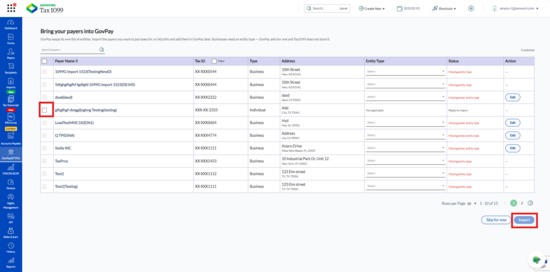
Select the checkbox corresponding to the payer you want to import.
-
Click Import.
-
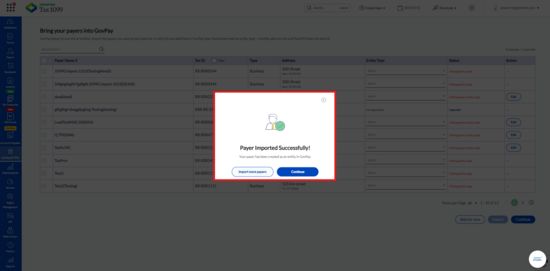
The Payer Imported Successfully! pop-up appears, confirming that the payer has been created as an entity in GovPay.
-
Click Import more payers to import additional payers or click Continue to proceed.The Bring your payers into GovPay page displays the imported payer with the Imported status.
-
Click Continue to proceed with the GovPay payment setup.
-