
Creating Federal Tax Payment
The Federal Tax Payment feature in GovPay allows users to create and submit federal tax payments through the Electronic Federal Tax Payment System (EFTPS). Users can enter enrollment and payment details, add a bank account, provide taxpayer information, complete the required authorizations, review payment details, and submit payments.
To create a Federal Tax Payment, follow these steps:
1. Navigate to the GovPay (EFTPS) interface from the left navigation menu.
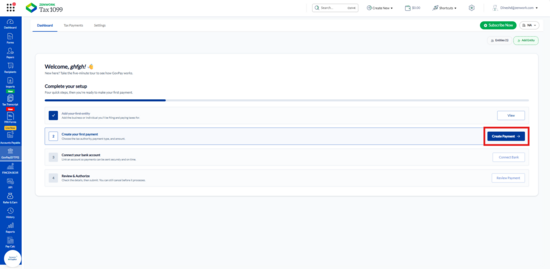
2. On the Dashboard page, click Create Payment under Create your first payment.
The Add Your First Payment dialog appears.
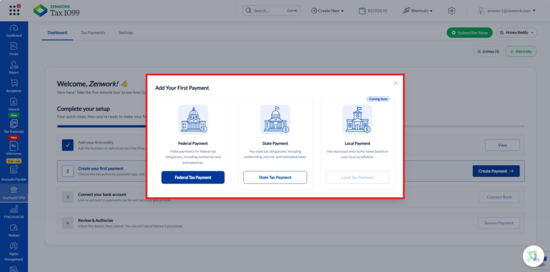
3. Select Federal Tax Payment.
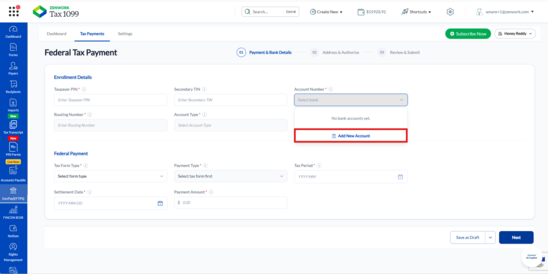
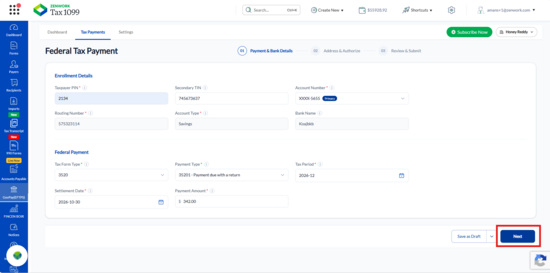
4. The Federal Tax Payment page appears with the following steps:
o Payment & Bank Details
o Address & Authorize
o Review & Submit
5. Under Enrollment Details, enter the Taxpayer PIN and Secondary TIN, if applicable.
6. Click the Account Number dropdown and select an existing bank account. If no bank account is available, click Add New Account.
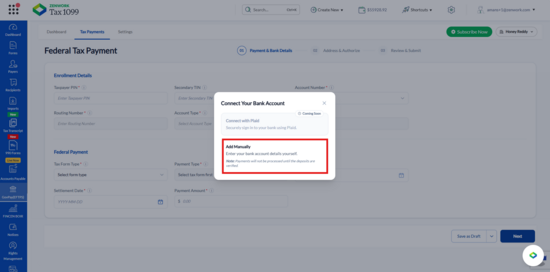
7. The Connect Your Bank Account dialog appears with the following options:
o Connect with Plaid: This feature is marked as Coming Soon.
o Add Manually: Allows you to enter your bank account details manually.
8. Select Add Manually.
The Add Bank Account Manually panel appears.
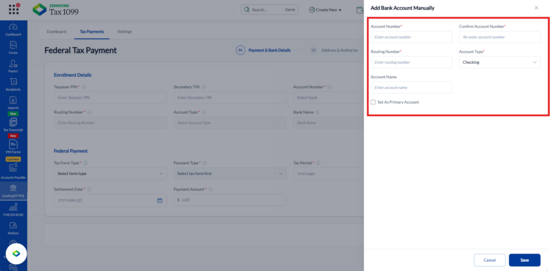
9. Enter the following bank account details:
o Account Number: Enter your bank account number.
o Confirm Account Number: Re-enter your bank account number.
o Routing Number: Enter your bank's routing number.
o Account Type: Select Checking or Savings.
o Account Name: Enter the account name, if applicable.
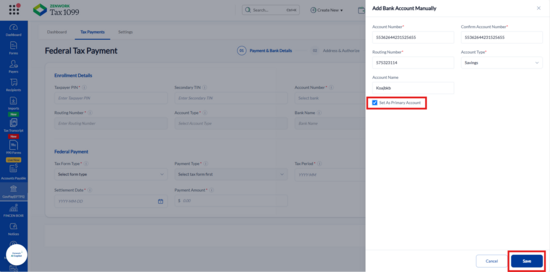
10. Select the Set As Primary Account checkbox if you want to make this account your primary bank account.
11. Click Save.
A Bank Account Added Successfully confirmation message appears.
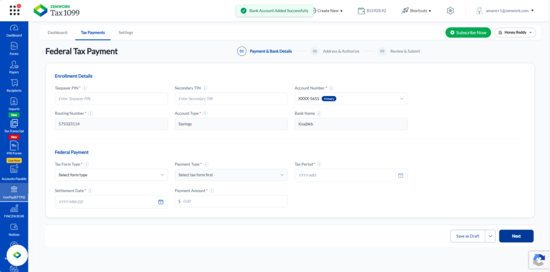
12. The newly added bank account appears in the Account Number dropdown. The system displays the masked account number and populates the corresponding Routing Number, Account Type, and Bank Name fields.
13. Under Federal Payment, enter the following details:
o Tax Form Type: Select the applicable federal tax form from the dropdown.
o Payment Type: Select the payment purpose associated with the selected tax form.
o Tax Period: Select the applicable tax period in YYYY-MM format.
o Settlement Date: Select the date on which the tax payment is scheduled for settlement.
o Payment Amount: Enter the amount you want to pay.
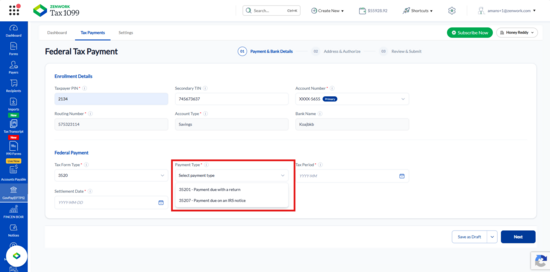
14. Click Next.
The Address & Authorize page appears.
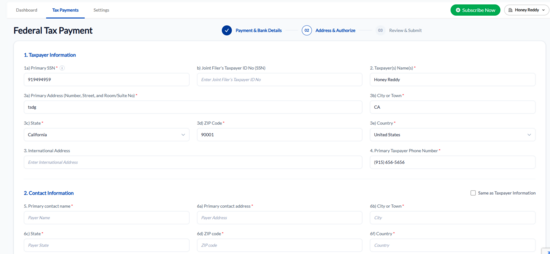
15. Under Taxpayer Information, enter or verify the following details:
o Primary SSN: Enter the primary taxpayer's Social Security Number.
o Joint Filer's Taxpayer ID No (SSN): Enter the joint filer's SSN, if applicable.
o Taxpayer(s) Name(s): Enter the taxpayer's name.
o Primary Address: Enter the street address, including the room or suite number, if applicable.
o City or Town: Enter the city or town.
o State: Select the applicable state.
o ZIP Code: Enter the ZIP Code.
o Country: Select the country.
o International Address: Enter the international address, if applicable.
o Primary Taxpayer Phone Number: Enter the taxpayer's contact number.
16. Under Contact Information, select Same as Taxpayer Information if the contact information matches the taxpayer information. Otherwise, enter the following details:
o Primary Contact Name
o Primary Contact Address
o City or Town
o State
o ZIP Code
o Country
o Primary Taxpayer Phone Number
o International Address, if applicable
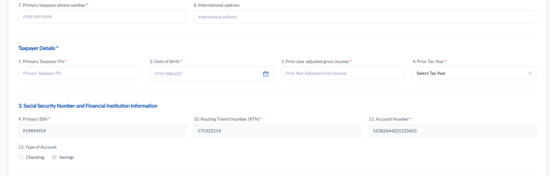
17. Under Taxpayer Details, enter the following information:
o Primary Taxpayer PIN: Enter the taxpayer's PIN.
o Date of Birth: Select the taxpayer's date of birth.
o Prior Year Adjusted Gross Income: Enter the adjusted gross income from the prior tax year.
o Prior Tax Year: Select the applicable prior tax year.
18. Under Social Security Number and Financial Institution Information, review the following details:
o Primary SSN
o Routing Transit Number (RTN)
o Account Number
o Type of Account (Checking or Savings)
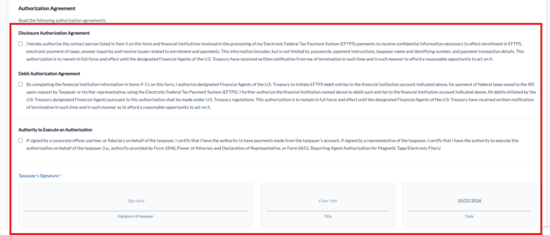
19. Under Authorization Agreement, read the following agreements and select the applicable checkboxes:
o Disclosure Authorization Agreement: Authorizes the designated contact person and financial institutions to receive information necessary for EFTPS enrollment and payment processing.
o Debit Authorization Agreement: Authorizes the designated financial agents to initiate debit transactions from the specified bank account.
o Authority to Execute an Authorization: Confirms that the person signing on behalf of the taxpayer has the necessary authority, where applicable.
20. Under Taxpayer's Signature, complete the following fields:
o Signature of Taxpayer: Enter your signature.
o Title: Enter your title, if applicable.
o Date: Review the displayed date.
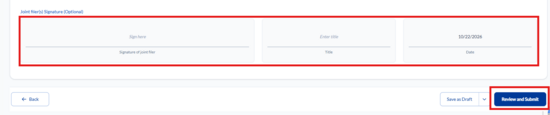
21. Under Joint Filer(s) Signature (Optional), enter the joint filer's signature and title, if applicable, and review the displayed date.
22. Click Review and Submit.
The Review & Submit page appears.
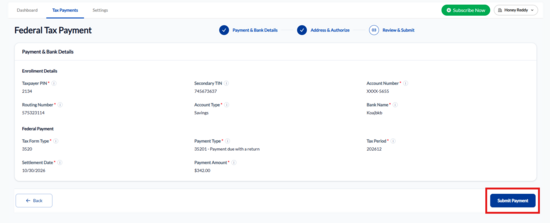
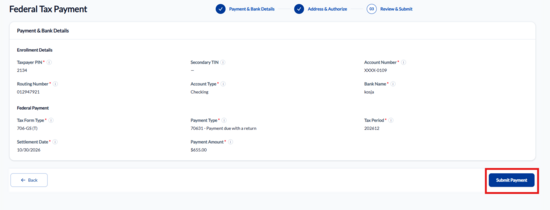
23. Review the information displayed under Payment & Bank Details, including:
o Taxpayer PIN and Secondary TIN
o Masked Bank Account Number
o Routing Number, Account Type, and Bank Name
o Tax Form Type and Payment Type
o Tax Period
o Settlement Date
o Payment Amount
24. Click Submit Payment.
The Subscription Plans dialog appears when a subscription must be selected.
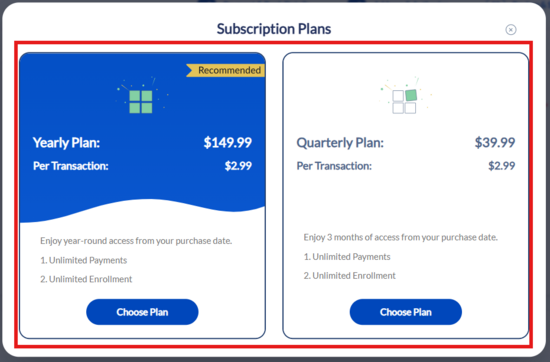
25. Select one of the available subscription plans:
o Yearly Plan: $149.99, with a $2.99 per-transaction fee.
o Quarterly Plan: $39.99, with a $2.99 per-transaction fee.
Both plans display unlimited payments and unlimited enrollment during their respective subscription periods.
26. Click Choose Plan under the preferred subscription.
The Payment method dialog appears.
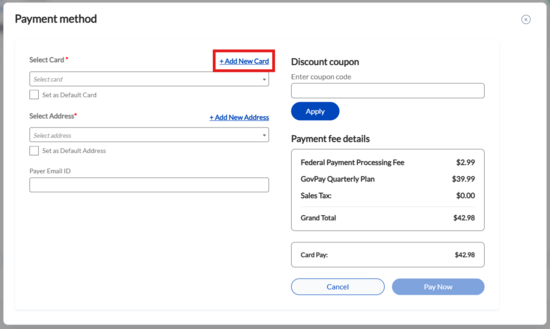
27. Under Payment method, select an existing card from the Select Card dropdown.
28. To add a new card, click + Add New Card.
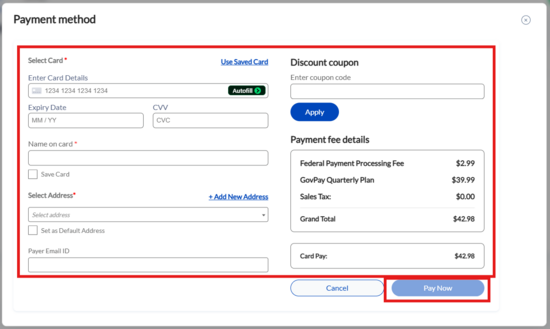
29. If you select + Add New Card, enter the following details:
o Card Number
o Expiry Date
o CVV
o Name on Card
Select Save Card if you want to save the card for future payments. Alternatively, click Use Saved Card to select an existing card.
30. Under Select Address, select an existing billing address or click + Add New Address to add one.
31. Select Set as Default Card or Set as Default Address, if applicable.
32. Enter the Payer Email ID, if applicable.
33. Under Discount coupon, enter a coupon code, if available, and click Apply.
34. Review the Payment fee details, including the federal payment processing fee, subscription fee (if applicable), sales tax, and grand total.
35. If the Prepay Wallet option is available, select it to pay the applicable charges using your available wallet balance. The dialog displays the amount payable through the wallet and the card.
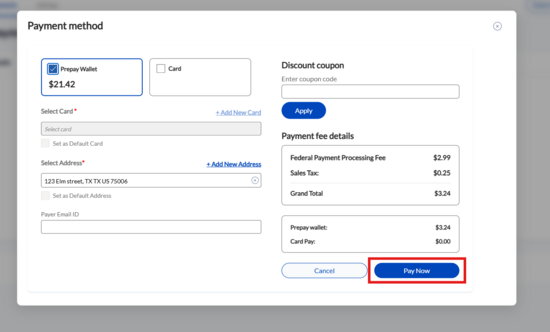
36. Click Pay Now to complete the payment.
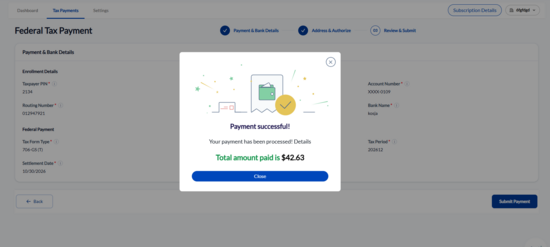
37. After successful processing, the Payment successful! dialog appears and displays the total amount paid. Where available, the dialog also displays the payment reference ID.
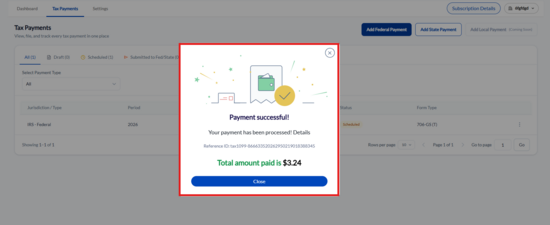
38. Click Close. You can view the payment on the Tax Payments page.