Creating State Tax Payment
Creating State Tax Payment
The State Tax Payment feature in GovPay allows users to create and schedule state tax payments. Users can select the state and payment purpose, enter tax account information, schedule single or multiple tax payments, select a bank account, review payment details, and authorize the payment.
To create a State Tax Payment, follow these steps:
1. Navigate to the Dashboard interface in GovPay.
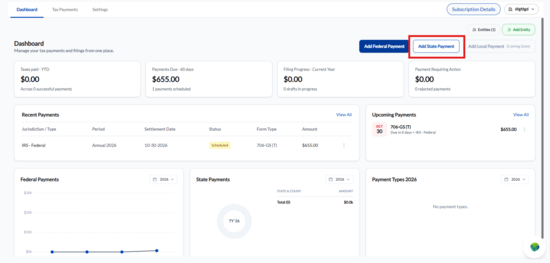
2. Click Add State Payment.
The State Tax Payment page appears with the following steps:
o Payment Details
o Bank Account
o Review & Authorize
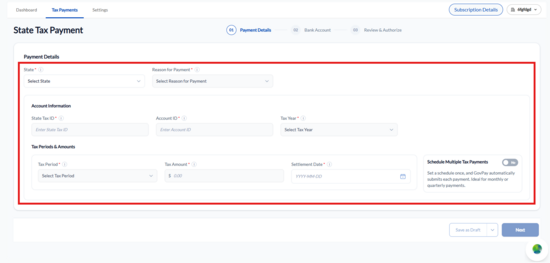
3. Under Payment Details, enter or select the following information:
o State: Select the state to which you want to make the tax payment.
o Reason for Payment: Select the applicable payment purpose, such as Estimated Tax.
Based on the selected state and payment purpose, the system displays the applicable Frequency and Forms fields, such as Quarterly and 100-ES.
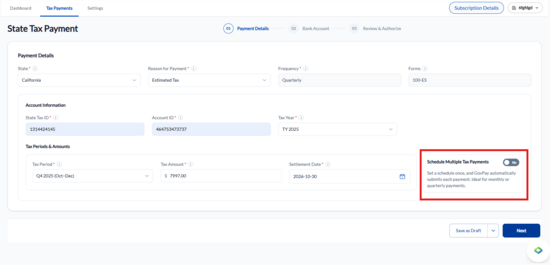
4. Under Account Information, enter or verify the following details:
o State Tax ID: Enter the state tax identification number associated with the taxpayer.
o Account ID: Enter the tax account identification number.
o Tax Year: Select the applicable tax year from the dropdown.
Note: Depending on the selected account, the State Tax ID and Account ID may appear prepopulated and restricted from editing. Verify these details before proceeding.
5. Under Tax Periods & Amounts, enter the following details:
o Tax Period: Select the applicable tax period from the dropdown, such as Q4 2025 (Oct–Dec).
o Tax Amount: Enter the tax amount you want to pay.
o Settlement Date: Select the payment settlement date using the calendar icon.
6. To schedule multiple state tax payments, enable the Schedule Multiple Tax Payments toggle. The + Add New option appears under Tax Periods & Amounts.
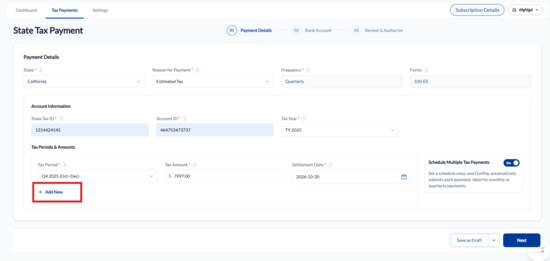
7. Click + Add New.
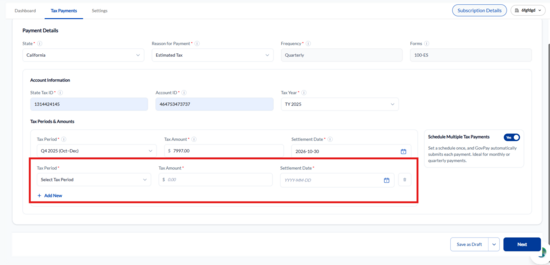
A new payment row appears with the following fields:
o Tax Period
o Tax Amount
o Settlement Date
8. Enter the applicable tax period, tax amount, and settlement date for the additional payment.
9. To add more payments, click + Add New and enter the required details for each payment row.
10. To remove an additional payment row, click the Delete icon next to the corresponding row.
Note: Each row represents a separate scheduled tax payment with its own tax period, amount, and settlement date. This option does not create an automatically recurring payment.
11. Click Next.
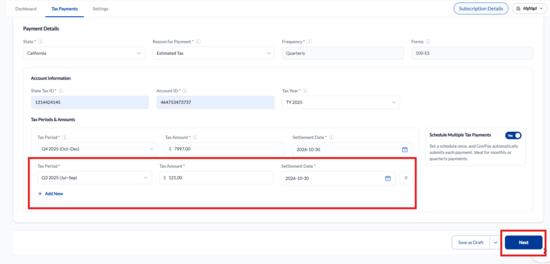
The Bank Account page appears.
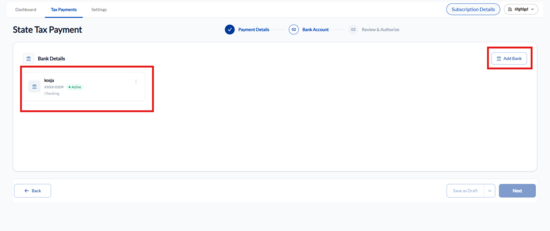
12. Under Bank Details, select the bank account you want to use for the state tax payment. The bank account card displays the following details:
o Bank account name
o Masked account number
o Account status
o Account type, such as Checking
13. If you want to add a new bank account, click Add Bank and complete the required bank account information.
14. Select the applicable bank account card. The selected account appears with a blue border.
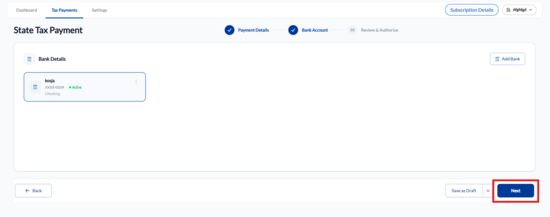
15. Click Next.
The Review & Authorize page appears.
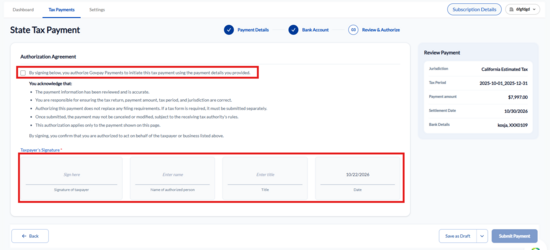
16. Under Review Payment, verify the following information:
o Jurisdiction: Displays the selected state and payment purpose.
o Tax Period: Displays the tax period associated with the payment.
o Payment Amount: Displays the tax amount.
o Settlement Date: Displays the scheduled settlement date.
o Bank Details: Displays the selected bank account name and masked account number.
17. Under Authorization Agreement, review the payment authorization terms and select the checkbox to authorize GovPay to initiate the tax payment using the provided payment details.
18. Under Taxpayer's Signature, complete the following fields:
o Signature of Taxpayer: Sign in the designated signature field.
o Name of Authorized Person: Enter the name of the person authorizing the payment.
o Title: Enter the authorized person's title.
o Date: Review the displayed date.
19. Click Submit Payment.
The Payment method dialog appears.
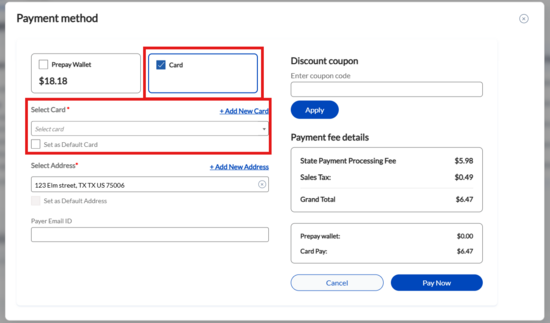
20. Under Payment method, select one of the available payment options:
o Prepay Wallet: Use the available wallet balance to pay the applicable processing charges.
o Card: Pay the applicable processing charges using a saved or new card.
21. If you select Card, click the Select Card dropdown and choose an existing card. Alternatively, click + Add New Card to add a new card.
22. Select Set as Default Card if you want to make the selected card your default payment method.
23. Under Select Address, select an existing billing address. Alternatively, click + Add New Address to add a new billing address.
24. Enter the Payer Email ID, if applicable.
25. Under Discount coupon, enter a coupon code, if available, and click Apply.
26. Review the Payment fee details, including:
o State Payment Processing Fee: Displays the applicable state payment processing charge.
o Sales Tax: Displays the applicable sales tax.
o Grand Total: Displays the total amount payable.
o Prepay Wallet: Displays the amount payable through the wallet.
o Card Pay: Displays the amount payable through the selected card.
27. Click Pay Now.
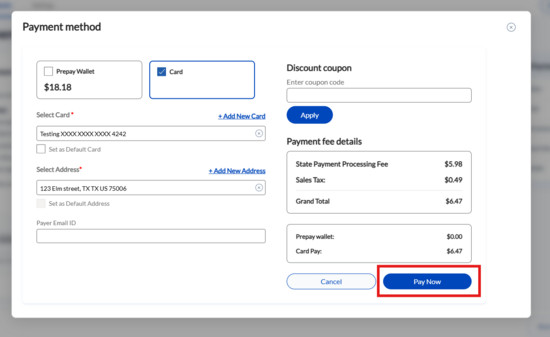
After successful processing, the Payment successful! dialog appears.
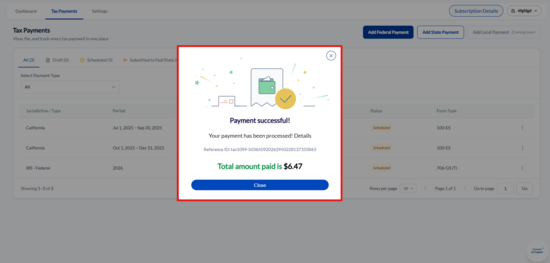
28. Review the payment confirmation, which displays the following details:
o Reference ID: Displays the payment reference number.
o Total Amount Paid: Displays the amount charged for payment processing.
29. Click Close.
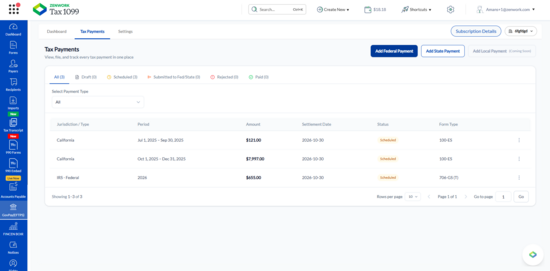
The Tax Payments page appears, where you can view the scheduled state tax payments and their statuses.