
Tax Payments
The Tax Payments page in GovPay allows users to view, track, and manage federal and state tax payments. Users can monitor payment statuses, view payment details, download payment PDFs, and cancel scheduled payments.
To access and manage tax payments, follow these steps:
1. Navigate to the GovPay (EFTPS) interface from the Tax1099 left navigation menu.
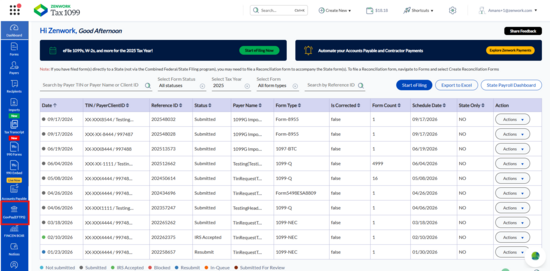
2. Click the Tax Payments tab on the GovPay Dashboard.
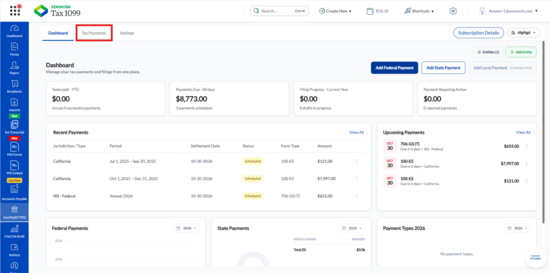
The Tax Payments page appears.
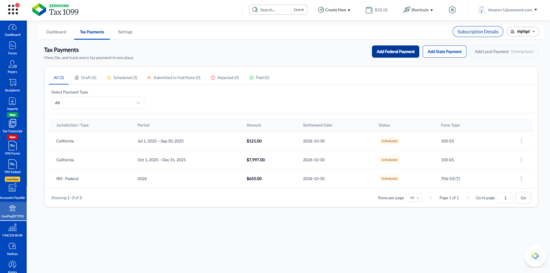
3. The page displays the following payment status tabs:
o All: Displays all available tax payment records.
o Draft: Displays payments saved as drafts.
o Scheduled: Displays payments scheduled for a future settlement date.
o Submitted to Fed/State: Displays payments submitted to the applicable federal or state tax authority.
o Rejected: Displays rejected tax payments.
o Paid: Displays payments marked as paid.
4. Under Select Payment Type, select the required payment type from the dropdown to filter the payment records. Select All to view all payment types.
5. The payment records appear in a table with the following columns:
o Jurisdiction / Type: Displays the federal or state jurisdiction associated with the payment.
o Period: Displays the applicable tax period.
o Amount: Displays the tax payment amount.
o Settlement Date: Displays the scheduled payment settlement date.
o Status: Displays the current payment status.
o Form Type: Displays the tax form associated with the payment.
6. To view payment records based on their status, click the applicable status tab.
7. To view additional payment records, use the pagination options at the bottom of the table:
o Rows per page: Select the number of records to display on each page.
o Previous / Next: Navigate between available pages.
o Go to page: Enter a page number and click Go.
8. To create a new tax payment, click Add Federal Payment or Add State Payment, depending on the payment type.
Note: The Add Local Payment option is marked as Coming Soon.
Viewing and Downloading a Payment PDF
To view or download a tax payment PDF, follow these steps:
9. Navigate to the Tax Payments page.
10. Locate the required payment record in the table.
11. Click the three-dot menu next to the payment record.
The available action options appear.
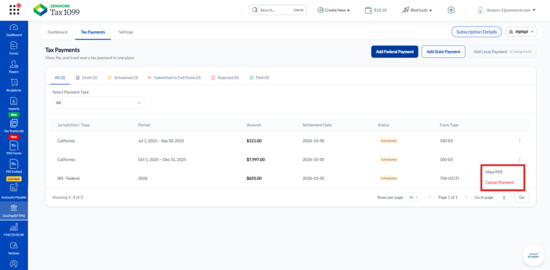
12. Click View PDF. The Payment PDF window appears.
13. Review the payment PDF, which displays the following sections:
o Taxpayer / Organization: Displays the taxpayer's identification number, name, organization details, address, phone number, and email address.
o Payment Summary: Displays the tax payment amount.
o Payment Details: Displays the jurisdiction, payment category, tax period, and account or reference ID.
o Bank Account (Debit): Displays the bank name, account holder, account type, masked account number, and payment channel.
14. Review the payment reference number, payment date, and payment status displayed in the PDF.
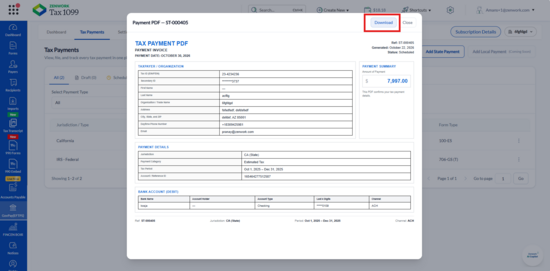
15. Click Download to download the payment PDF.
16. Click Close to return to the Tax Payments page.
Note: The payment PDF displays the payment details and current payment status. A PDF showing Scheduled status does not indicate that the tax authority has completed the payment settlement.
Cancelling a Scheduled Tax Payment
To cancel a scheduled tax payment, follow these steps:
17. Navigate to the Tax Payments page.
18. Click the Scheduled tab to view the scheduled tax payments.
19. Locate the payment you want to cancel.
20. Click the three-dot menu next to the payment record. The available action options appear.
21. Click Cancel Payment. The Block this scheduled payment? confirmation dialog appears with the following message:
"This will permanently cancel the scheduled payment and cannot be undone".
22. Click Block Payment to confirm the cancellation. Alternatively, click Go Back to return to the Tax Payments page without canceling the payment.
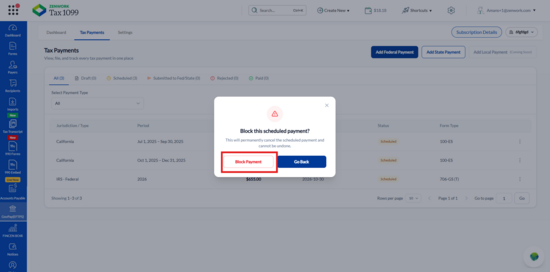
23. After successful cancellation, the following confirmation message appears:
Payment Cancelled: This scheduled payment has been cancelled.
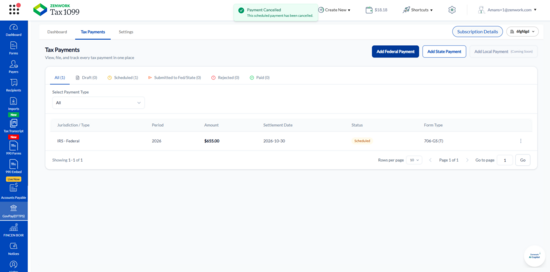
24. The cancelled payment no longer appears in the active payment list, and the Scheduled payment count decreases accordingly.