
Add Entity
GovPay (EFTPS) allows users to add Business and Individual entities to manage federal and state tax payments. Users can enter taxpayer information, contact details, and addresses to create an entity in GovPay.
Navigate to the Tax1099 interface and select GovPay (EFTPS) to access the Add Entity feature.
To add an entity, perform the following steps:
1. Log in to the Tax1099 application.
2. From the left navigation pane, click GovPay (EFTPS).
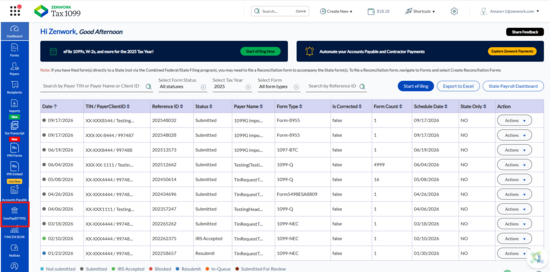
The GovPay Dashboard page appears.
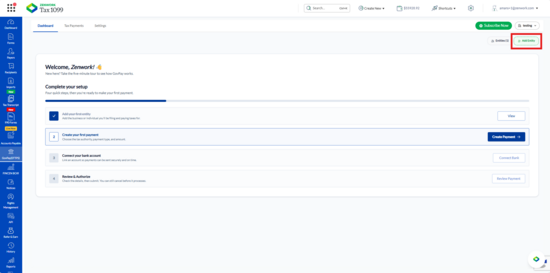
3. Click Add Entity in the upper-right corner.
The Add Entity page appears.
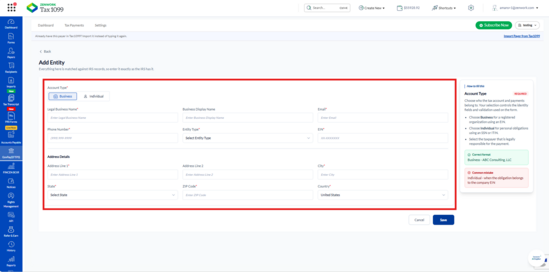
4. Under Account Type, select Business or Individual, depending on the taxpayer for whom you want to make payments.
Adding a Business Entity
5. Select Business under Account Type.
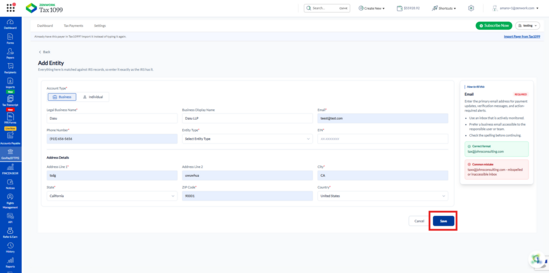
6. Enter the following business details:
o Legal Business Name: Enter the legal name of the business as registered with the IRS.
o Business Display Name: Enter the name you want to display for the business in GovPay.
o Email: Enter the business email address.
o Phone Number: Enter the business contact number.
o Entity Type: Select the appropriate business classification from the drop-down menu.
o EIN: Enter the nine-digit Employer Identification Number assigned to the business by the IRS.
7. Under Address Details, enter the following information:
o Address Line 1: Enter the business street address.
o Address Line 2: Enter additional address information, if applicable.
o City: Enter the city name.
o State: Select the state from the drop-down menu.
o ZIP Code: Enter the ZIP Code.
o Country: Select the country from the drop-down menu.
8. Review the entered details and click Save.
The Entity Added Successfully! pop-up appears, displaying the Business Name, Email, Phone Number, Entity Type, Masked EIN, and Address.
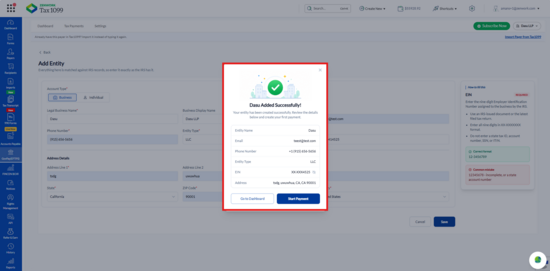
9. Click Go to Dashboard to return to the GovPay Dashboard or click Start Payment to initiate a tax payment for the newly added business entity.
Adding an Individual Entity
10. On the Add Entity page, select Individual under Account Type.
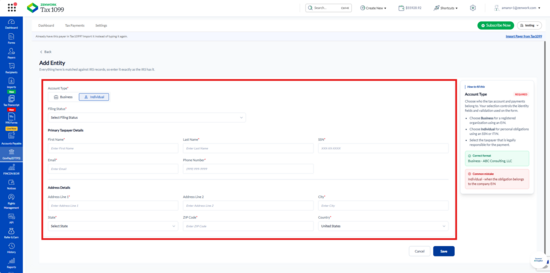
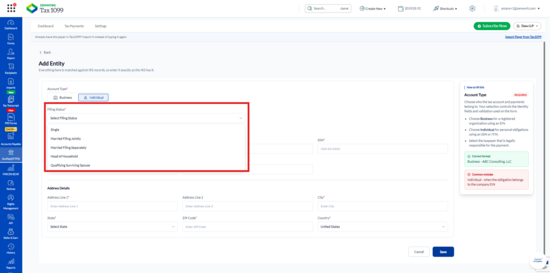
11. Select the appropriate option from the Filing Status drop-down menu:
o Single
o Married Filing Jointly
o Married Filing Separately
o Head of Household
o Qualifying Surviving Spouse
12. Under Primary Taxpayer Details, enter the following information:
o First Name: Enter the taxpayer's first name.
o Last Name: Enter the taxpayer's last name.
o SSN: Enter the nine-digit Social Security Number.
o Email: Enter the taxpayer's email address.
o Phone Number: Enter the taxpayer's contact number.
13. Under Address Details, enter the following information:
o Address Line 1: Enter the taxpayer's street address.
o Address Line 2: Enter additional address information, if applicable.
o City: Enter the city name.
o State: Select the state from the drop-down menu.
o ZIP Code: Enter the ZIP Code.
o Country: Select the country from the drop-down menu.
14. Review the entered details and click Save.
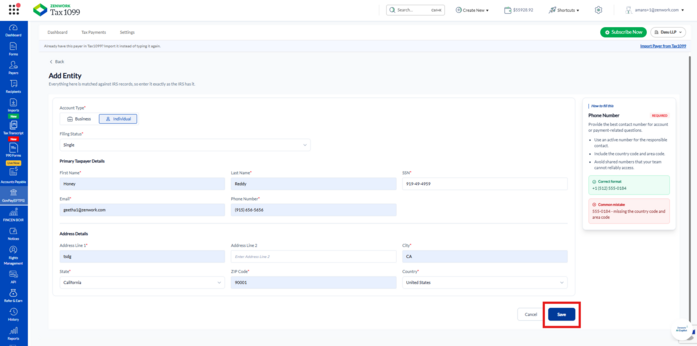
The Entity Added Successfully! pop-up appears, displaying the taxpayer's first name, last name, email, phone number, masked SSN, and address.
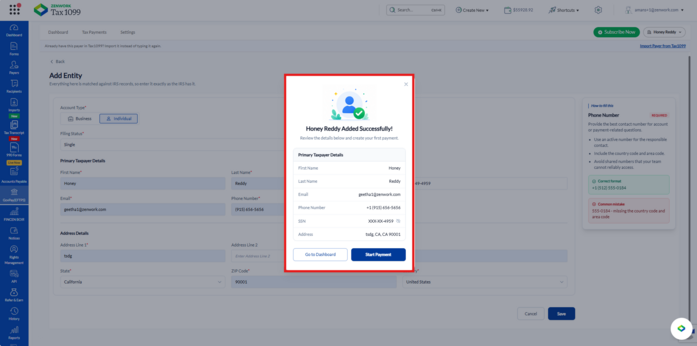
15. Click Go to Dashboard to return to the GovPay Dashboard or click Start Payment to initiate a tax payment for the newly added individual entity.