
Tax Accounts
The Tax Accounts section allows users to manage state tax account information required for applicable state tax payments. Users can add tax accounts, review existing account details, and update tax account information.
Adding a Tax Account
To add a state tax account, follow these steps:
1. Navigate to the GovPay (EFTPS) interface from the Tax1099 left navigation menu.
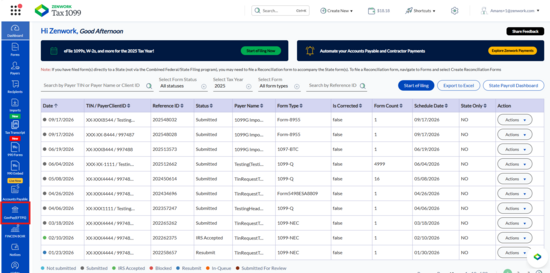
2. Click the Settings tab.
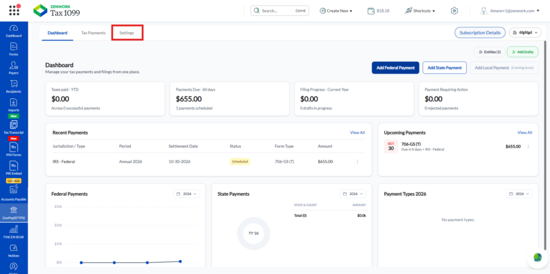
3. Select Tax Accounts from the left panel.
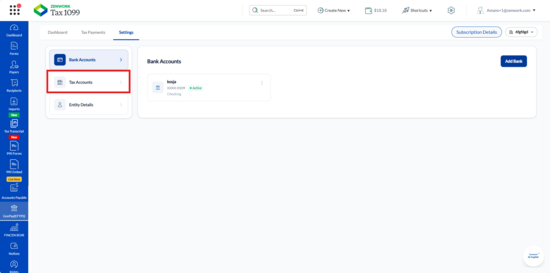
The Tax Accounts page appears.
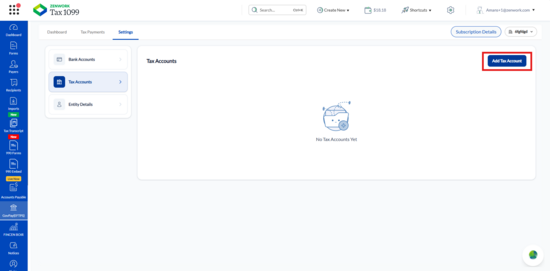
4. Click Add Tax Account.
The Add Tax Account panel appears.
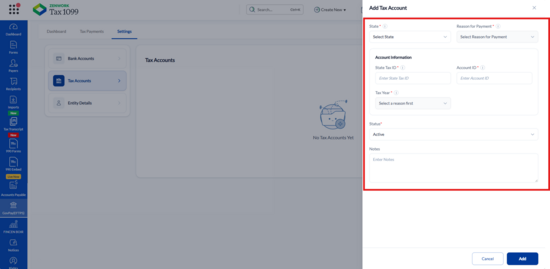
5. Enter or select the following information:
o State: Select the state associated with the tax account.
o Reason for Payment: Select the applicable reason for payment, such as Withholding Tax.
o State Tax ID: Enter the state tax identification number.
o Account ID: Enter the account identification number.
o Tax Year: Select the applicable tax year.
o Frequency: Select the applicable payment frequency, such as Quarterly, when this field appears.
o Status: Select the required account status. The screenshot displays Active.
o Notes: Enter additional information related to the tax account, if required.
6. Review the entered information.
7. Click Add to save the tax account information. Alternatively, click Cancel to close the panel without adding the account.
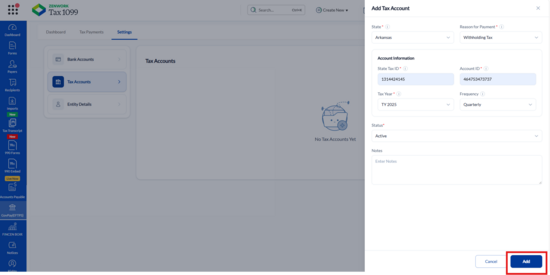
8. The added tax account appears on the Tax Accounts page.
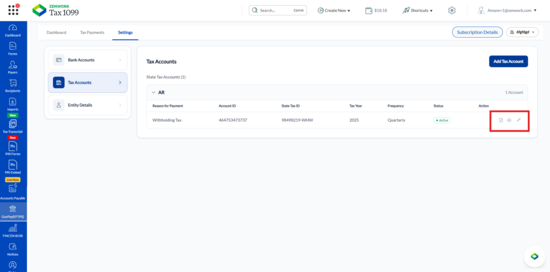
9. Click View icon to view the Tax Account.
The View Tax Amount panel appears.
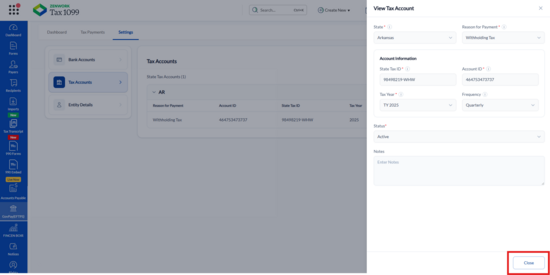
10. Click Edit icon to edit the Tax Account.
The Edit Tax Account panel appears.
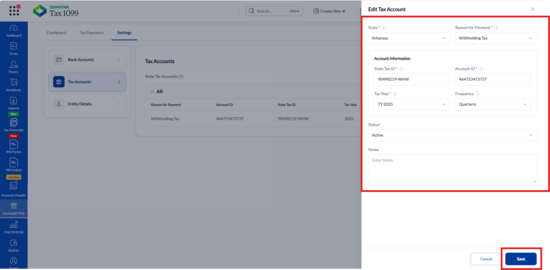
11. Click Save, if any changes are done.