
Entity Details
The Entity Details section allows users to view and manage the entity information associated with their GovPay account. This information includes the entity name, account type, entity type, tax identification number, contact information, and address.
Viewing Entity Details
To view entity details, follow these steps:
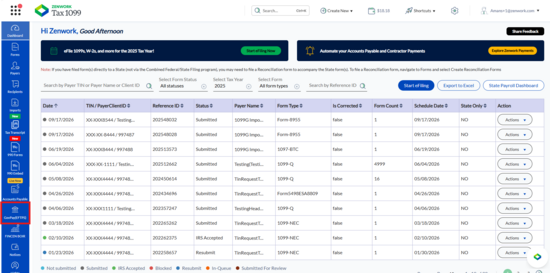
1. Navigate to the GovPay (EFTPS) interface from the Tax1099 left navigation menu.
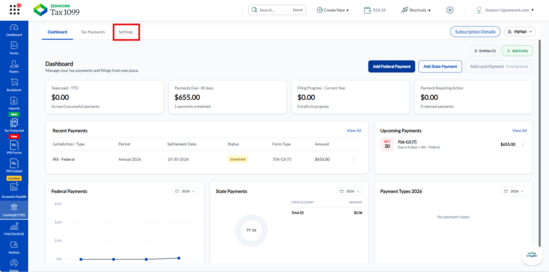
2. The GovPay Dashboard appears, click the Settings tab.
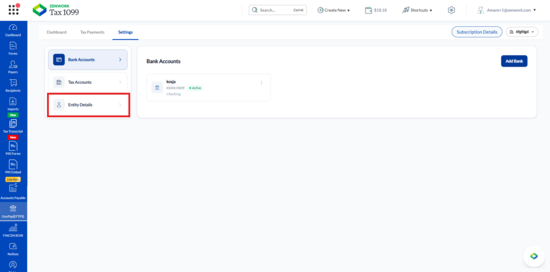
3. Select Entity Details from the left panel.
The Entity Details page appears.
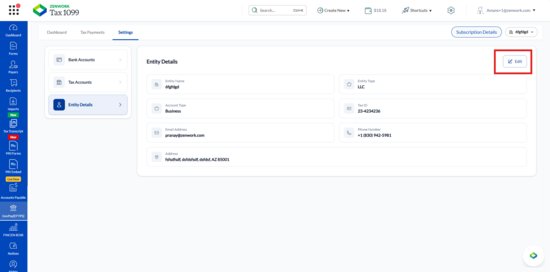
4. Review the following information:
o Entity Name: Displays the entity name.
o Entity Type: Displays the business entity classification, such as LLC.
o Account Type: Displays the account type, such as Business.
o Tax ID: Displays the entity's tax identification number.
o Email Address: Displays the registered email address.
o Phone Number: Displays the contact phone number.
o Address: Displays the entity's registered address.
5. Click Edit to update the entity information.
The Edit Entity page appears.
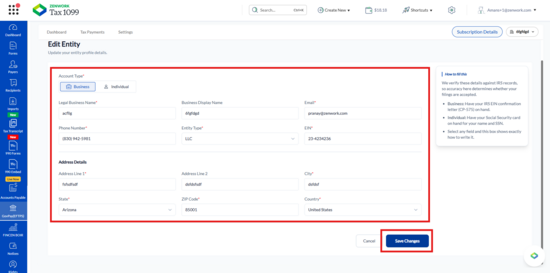
6. Under Account Type, select the applicable option:
o Business
o Individual
7. For a business account, review or update the following information:
o Legal Business Name: Enter the legal name of the business.
o Business Display Name: Enter the name to display for the business.
o Email: Enter the email address.
o Phone Number: Enter the contact phone number.
o Entity Type: Select the applicable business entity type, such as LLC.
o EIN: Enter the Employer Identification Number.
8. Under Address Details, review or update the following fields:
o Address Line 1: Enter the primary street address.
o Address Line 2: Enter additional address information, if applicable.
o City: Enter the city.
o State: Select the state.
o ZIP Code: Enter the ZIP code.
o Country: Select the country.
9. Review the information entered in the required fields.
10. Click Save Changes to save the updated entity information. Alternatively, click Cancel to exit without saving the changes.