
SSO Settings - Azure Active Directory (AD)
Navigate to the Tax1099 interface at Tax1099 – SSO Settings to configure Single Sign-On (SSO) settings.
To configure SSO settings, perform the following steps:
-
Login to the Tax1099 application.
-
On the dashboard page, click the
 Settings icon from the top right corner of the page, and then select SSO Setting.
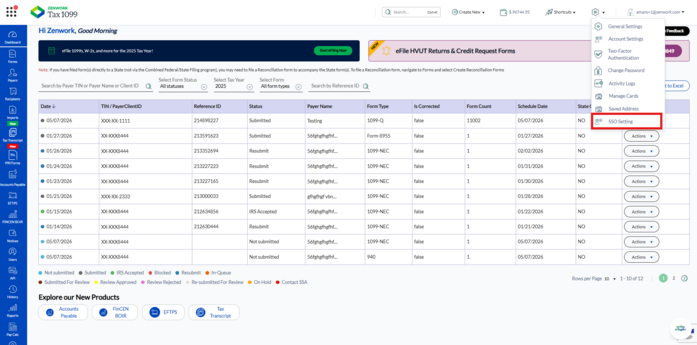 The SSO Settings page appears.
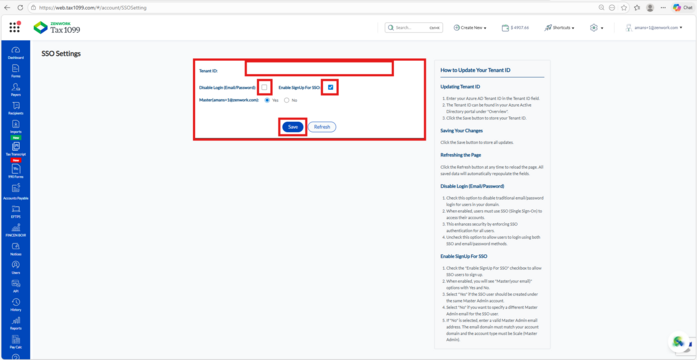 3. Enter the Azure AD Tenant ID in the Tenant ID field.4. Select the Disable Login (Email/Password) checkbox to disable the traditional email/password login for users in your domain.5. Select the Enable SignUp For SSO checkbox to allow SSO users to sign up.6. Under Master (your email), select either:
 -
Yes – To create the SSO user under the same Master Admin account.
-
No – To specify a different Master Admin email address for the SSO user.7. Click Save.The SSO settings are successfully saved.8. Click Refresh.The page reloads and repopulates the saved values automatically.
Notes:
• Select the Disable Login (Email/Password) checkbox to enforce SSO authentication for all users.
• Uncheck the Disable Login (Email/Password) checkbox to allow users to log in using both SSO and email/password methods.
• Ensure that the Tenant ID matches the Azure Active Directory Tenant ID.