
Annual Accumulation (1099-MISC)
The Annual Accumulation (1099-MISC) feature allows you to import Form 1099-MISC transactions, accumulate transactions for the same recipient, review annual totals, generate forms when the recipient data is ready, and track the filing status from the Annual Summary Dashboard. The MISC workflow supports both new and existing users.
Navigate to the Tax1099 interface at Tax1099 - IRS Authorized, #1 eFile Platform for All Businesses to access the Annual Consolidated Summary.
To search forms from dashboard, perform the following steps:
-
Login to the Tax1099 application.
-
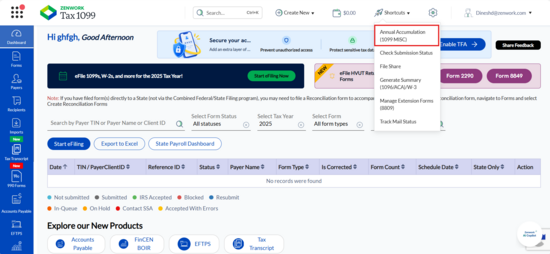
On the dashboard page, select Annual Accumulation (1099 MISC) from the
 Shortcuts list.
 For a New User
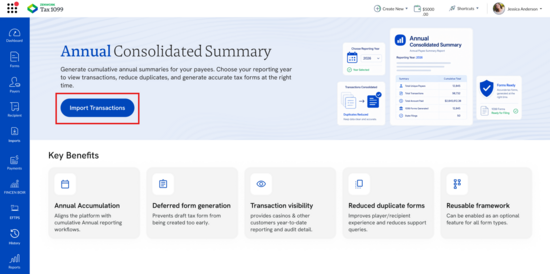
The Annual Consolidated Summary page appears. Review the key benefits of the Annual Consolidated Summary feature.
-
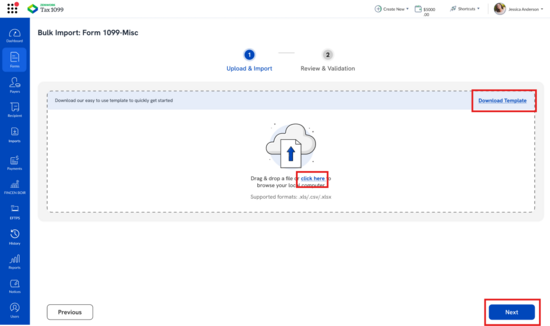
Click Import Transactions.The Bulk Import: Form 1099-Misc page appears with the Upload & Import and Review & Validation steps.
-
On the Upload & Import step, drag and drop the completed Form 1099-MISC file into the upload area or click the upload area to browse and select the file from your system.
-
(Optional) Click Download Template to download the supported import template.
-
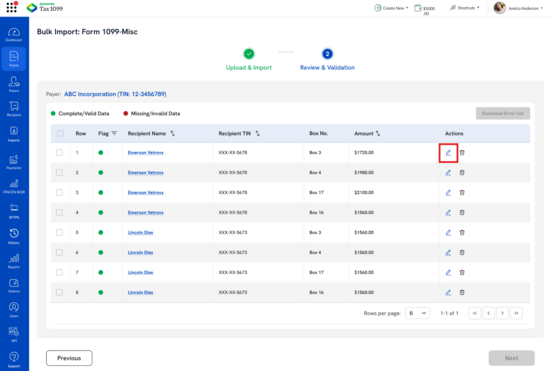
Click Next.The Review & Validation page appears.
-
Review the imported records, including the Recipient Name, Recipient TIN, Box No., Amount, and validation flags.
-
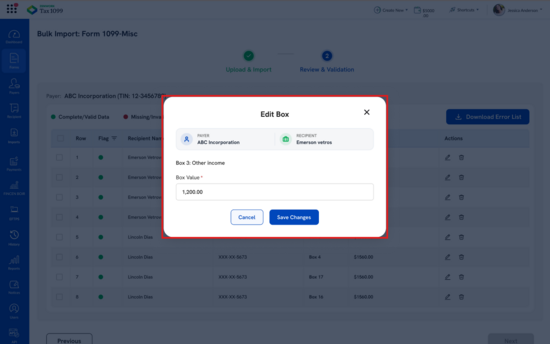
(Optional) Click the Edit icon for a record.The Edit Box dialog box appears.
-
Review the payer and recipient information, update the Box Value, and click Save Changes.
-
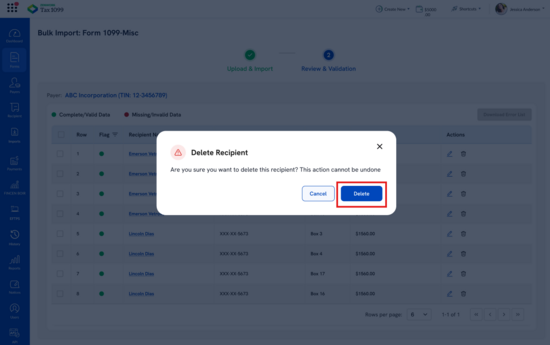
(Optional) Click the Delete icon to remove an imported recipient record.The Delete Recipient confirmation dialog box appears.
-
Click Delete to remove the recipient or Cancel to retain the record.
-
(Optional) Click Download Error List to download the records containing validation errors.
-
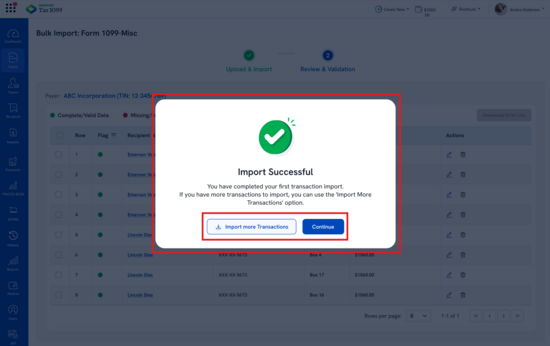
Review and correct the invalid records before completing the import.The Import Successful dialog box appears.
-
Perform any one of the following:
-
Click Import more Transactions to import additional transactions.
-
Click Continue to proceed to the Annual Summary Dashboard.
-
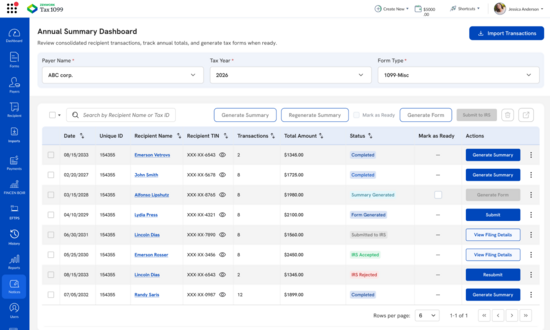
The Annual Summary Dashboard page appears.
For an Existing User:
The Annual Summary Dashboard page appears with the previously imported recipient records.
-
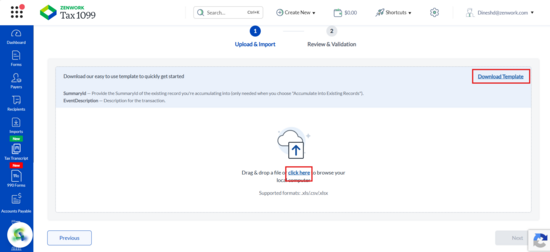
Click Import Transactions to import additional Form 1099-MISC transactions.The Bulk Import: Form 1099-Misc page appears.
-
Drag and drop the completed Form 1099-MISC file into the upload area or click the upload area to browse and select the file from your system.
-
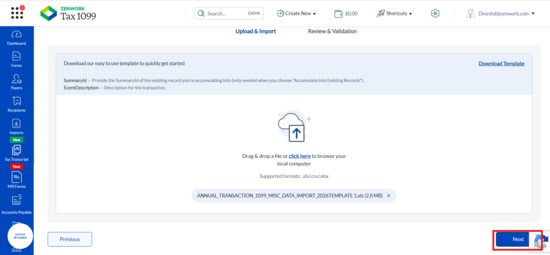
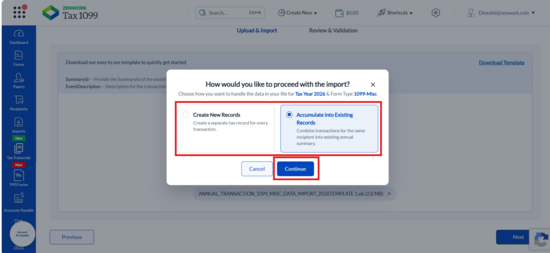
Click Next.A dialog box appears prompting you to select how you want to process the imported transactions.
-
Select the applicable option based on how you want to process the transactions:
-
Select Create New Records to create separate records for the imported transactions.
-
Select Accumulate into Existing Records to add the imported transactions to the applicable existing recipient records.
-
Click Continue.If Tax1099 cannot match a recipient with an existing record because the Unique ID is missing or invalid, the Record Matching Error dialog box appears.
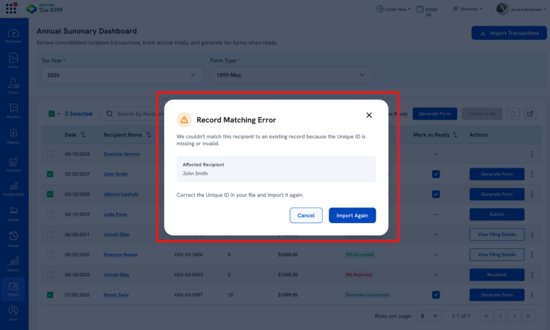 f. Review the recipients displayed under Affected Recipients.h. Correct the Unique ID in the import file and click Import Again.Note: The Unique ID/Summary ID must match the corresponding existing recipient record to accumulate the transactions successfully.
 -
Review the imported transactions on the Review & Validation page.
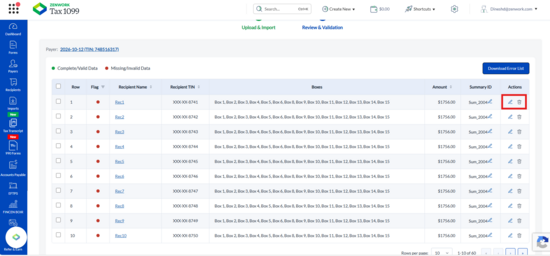 j. (Optional) Click the Edit icon to update the Box Value.k. (Optional) Click the Delete icon to remove an incorrect recipient record.l. Complete the import after reviewing the transaction details.The Import Successful dialog box appears.m. Click Continue.The Annual Summary Dashboard page appears.
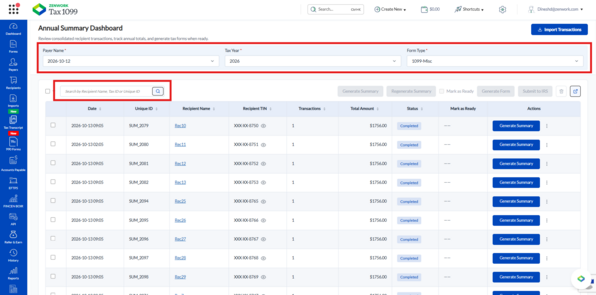
The following steps apply to both new and existing users after importing transactions.
3. On the Annual Summary Dashboard, locate the required recipient and click the three-dot icon under the Actions column.
4. The available actions appear.
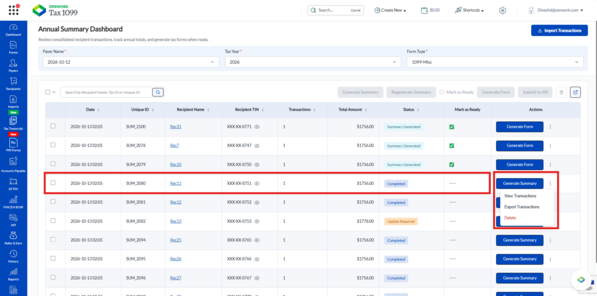
5. Click View Transactions to view the transactions associated with the selected recipient.
The recipient transaction details page appears.
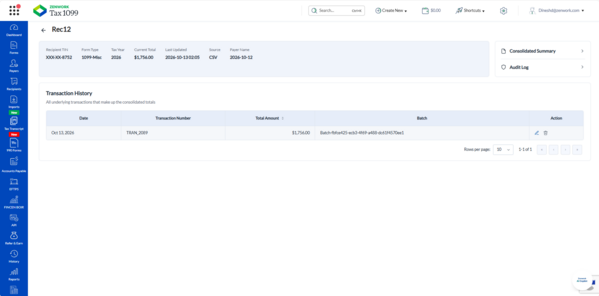
6. Review the transaction information, including the transaction date, transaction number, box-level amounts, and total amount.
7. (Optional) Click the Edit icon to update the required transaction information.
8. Click Export Transactions to export the transactions associated with the selected recipient.
The transaction details are downloaded to your local for further review.
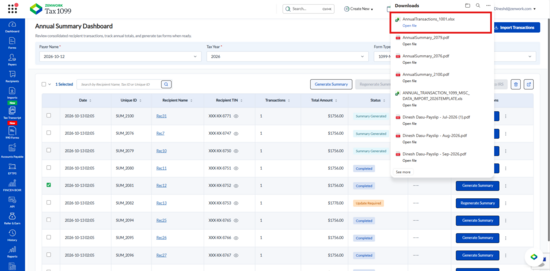
9. Click Delete to delete the selected recipient record.
A Success dialog box appears.
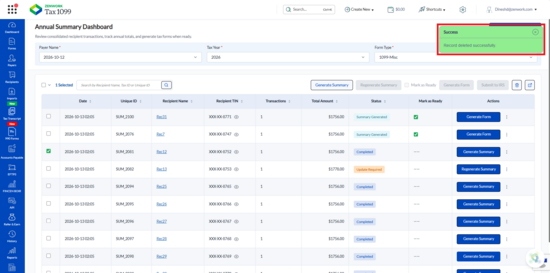
10. Record deleted successfully.
11. Select the required Payer Name, Tax Year, and Form Type.
12. Review the recipient records displayed with the Date, Unique ID, Recipient Name, Recipient TIN, Transactions, Total Amount, Status, Mark as Ready, and Actions columns.
13. (Optional) Use the search box to search for a recipient by name or Tax ID.
14. (Optional) Use the selection list to select all recipients, recipients on the current page, or recipients based on their status.
15. Click the required Recipient Name.
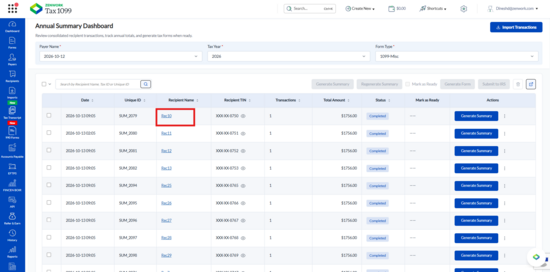
The recipient transaction history page appears.
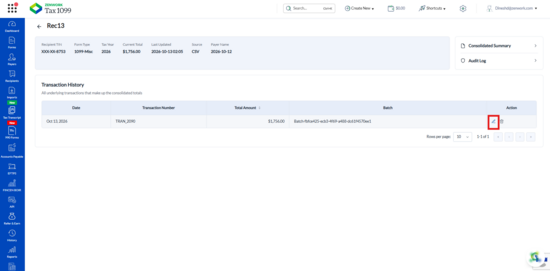
16. Review the recipient details, current total, last updated information, and transaction history.
17. To edit a transaction, click the Edit icon under the Action column.
The Edit Box-level Amounts dialog box appears.
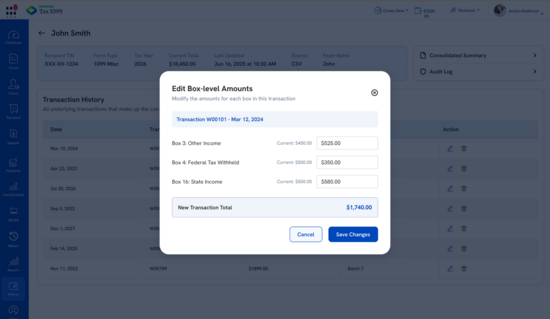
18. Update the required box-level amounts.
The New Transaction Total is updated based on the entered amounts.
19. Click Save Changes.
If the changes affect the transaction total, the Confirm Amount Change dialog box appears.
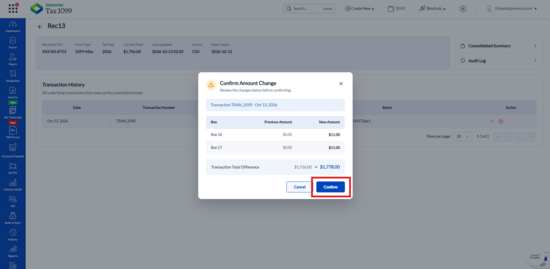
20. Click Confirm to save the changes or Cancel to retain the previous amounts.
21. To review the accumulated amounts, click Consolidated Summary.
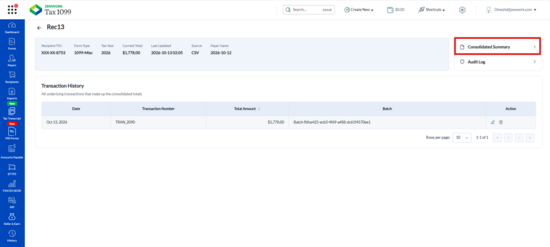
The Consolidated Summary pane appears.
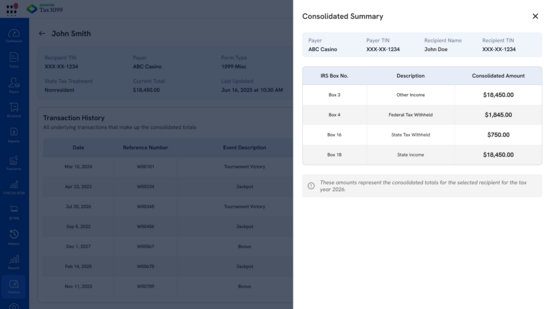
22. Review the payer information, recipient information, IRS Box No., Description, and Consolidated Amount.
23. To view the record history, click Audit Log.
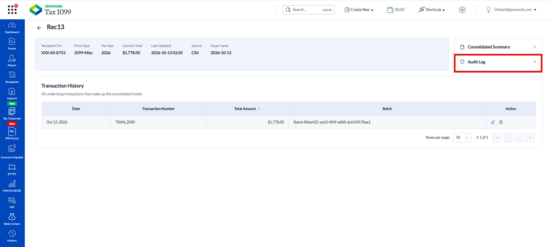
The Audit Log page appears.
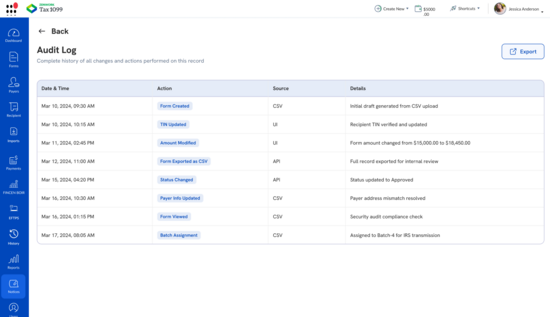
24. Review the Date & Time, Action, Source, and Details of the recorded activities.
25. (Optional) Click Export to export the audit log.
26. Return to the Annual Summary Dashboard.
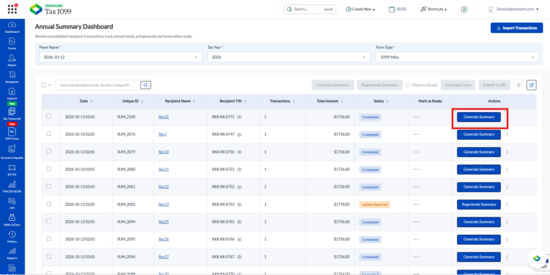
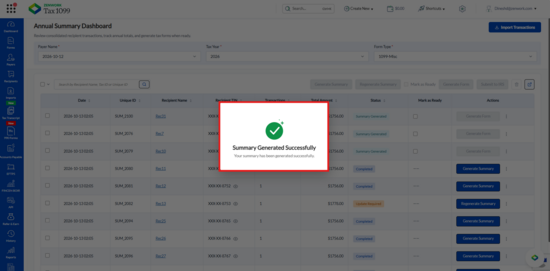
27. To generate a summary for an individual recipient, click Generate Summary under the Actions column.
The Summary Generated Successfully message appears.
28. To review the available summary actions, click the three-dot menu for the required recipient.
29. Select any of the following options, as applicable:
· Download summary to download the generated summary.
· Annual Summary Details to review the summary information.
· Export Transactions to export the recipient transactions.
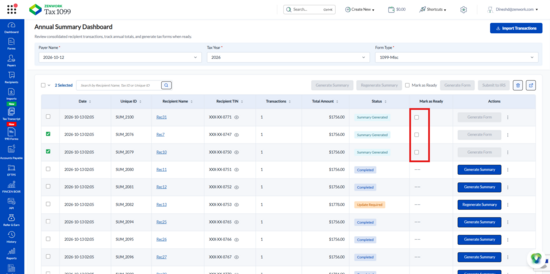
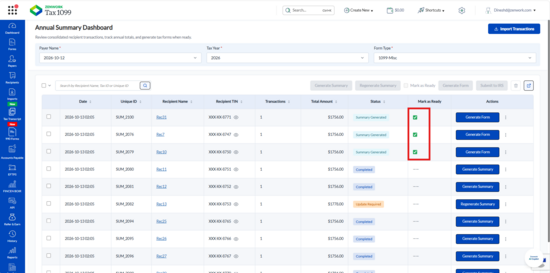
30. To prepare a recipient for form generation, select the Mark as Ready check box.
31. The recipient is marked as ready for form generation.
32. To remove the ready status, clear the Mark as Ready check box.
The Remove ready status? dialog box appears.
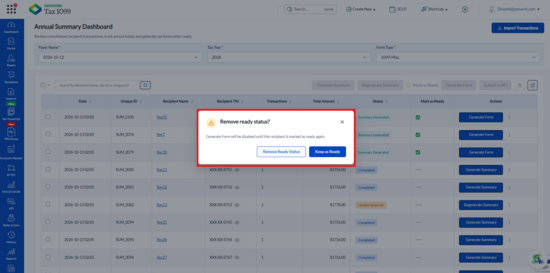
33. Click Remove Ready Status to allow changes to the record or Keep as Ready to retain its current status.
Note: Form generation is disabled until the recipient is marked as ready again.
34. To generate Form 1099-MISC, click Generate Form for the required recipient.
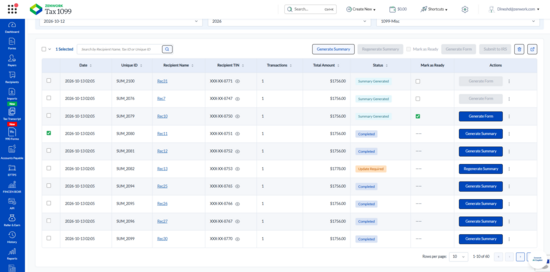
The Form Generated Successfully message appears.
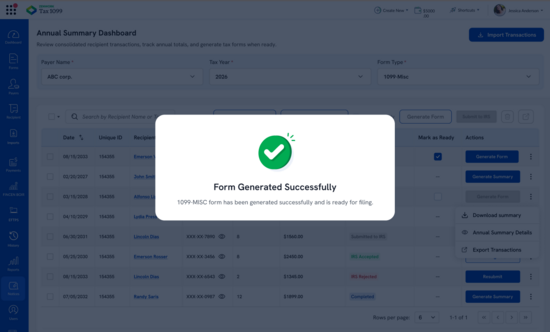
35. The recipient status changes to Form Generated, and the Submit option becomes available.
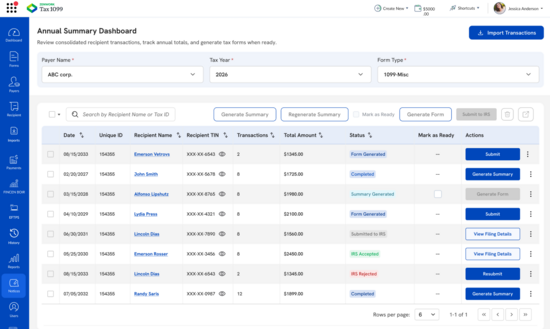
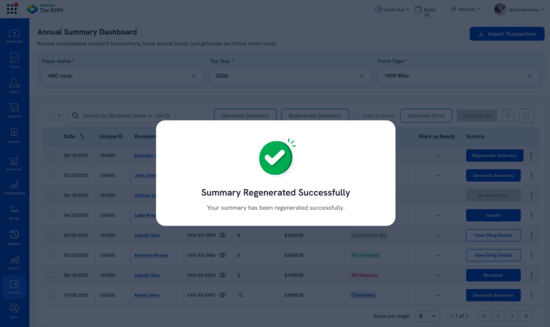
36. If the summary requires an update after the form is generated, click Regenerate Summary.
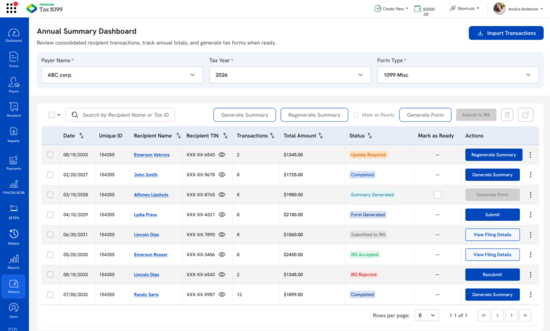
The Summary Regenerated Successfully message appears.
37. To submit the generated form, click Submit under the Actions column.
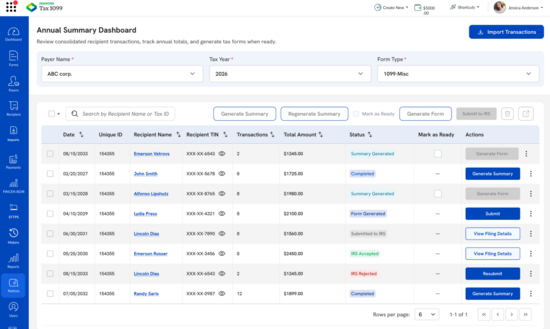
38. Navigate to the Unsubmitted page in Tax1099 and submit the form to complete the filing process.
Note: Once the form is scheduled or submitted, users cannot edit its summary on this dashboard. For scheduled forms, users can edit the amount from the Submitted page in Tax1099. However, these changes will not reflect on this dashboard. A pop-up also informs users about this limitation.
39. To review the submission information, click View Filing Details.
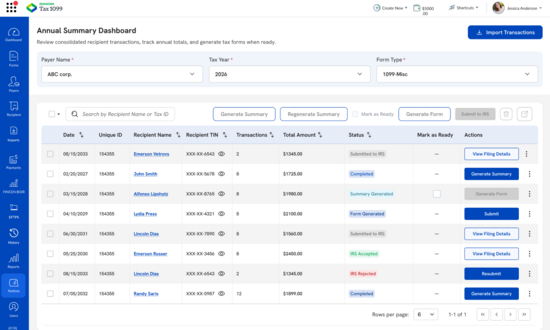
The Filing Details pane appears.
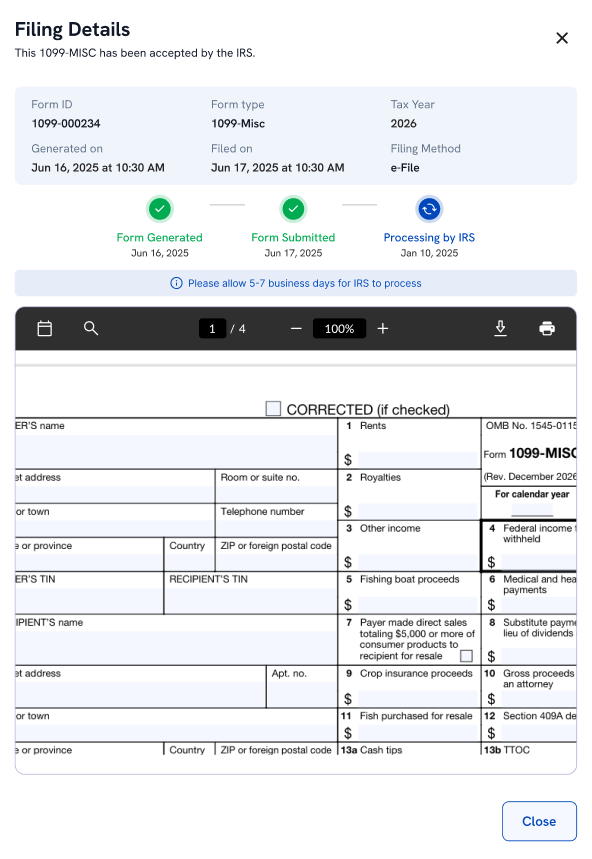
40. Review the Form ID, Form Type, Tax Year, Generated On, Filed On, Filing Method, and filing status timeline.
41. Review the generated Form 1099-MISC in the PDF preview.
42. If the IRS rejects the form, the recipient status appears as IRS Rejected.
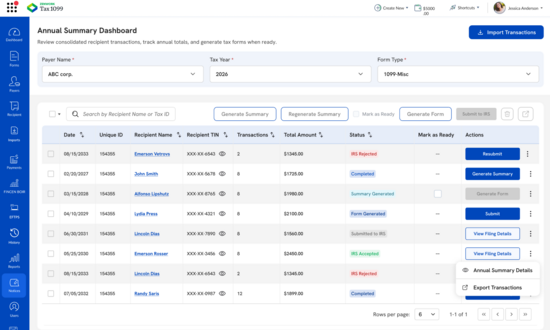
43. Click Resubmit for the rejected form.
The IRS Rejection pane appears.
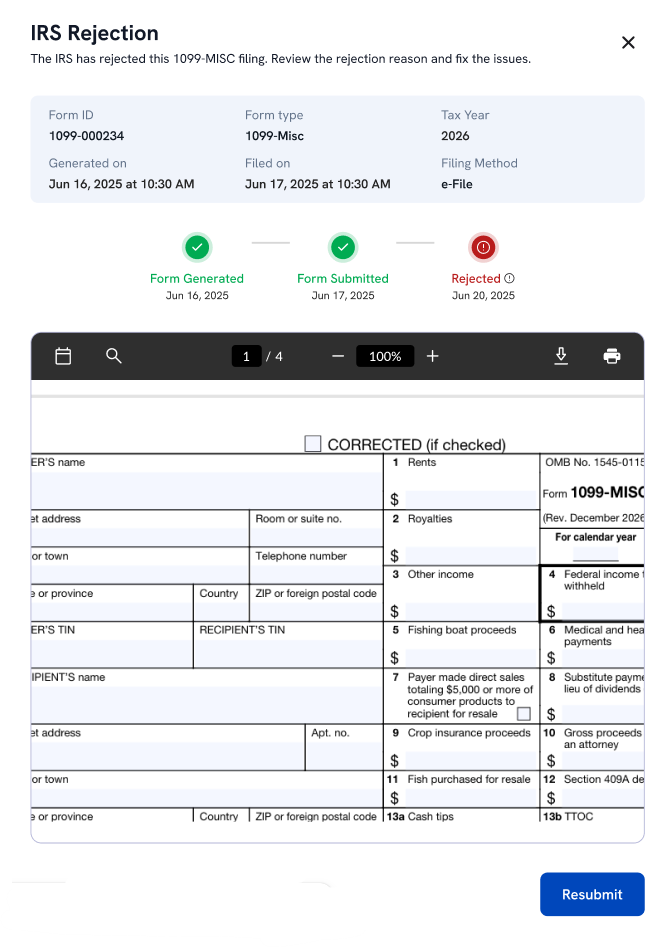
44. Review the filing information and the rejected form. Click Resubmit to proceed with resubmission.
45. For scheduled forms, click View Filing Details to review the scheduled filing information.
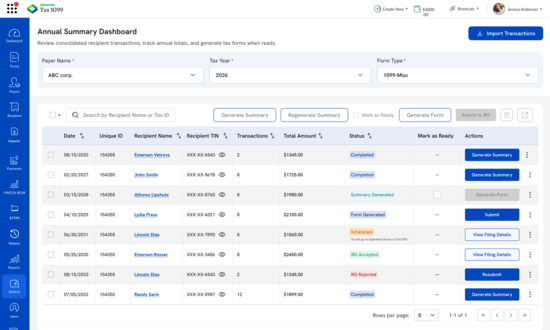
Note: Changes made to submitted forms do not update the Form 1099-MISC Summary. They apply only to the scheduled return and are filed with the IRS on the scheduled date, as indicated in the application.
46. If the recipient status is Correction Required, click Review & File.
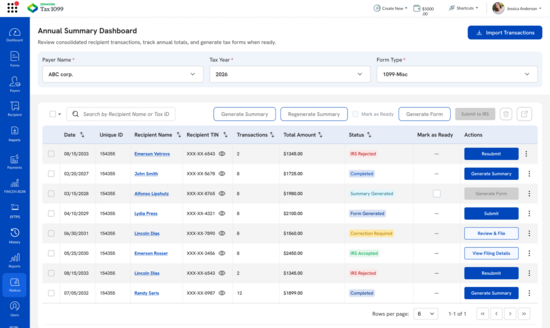
The Preview Correction pane appears.
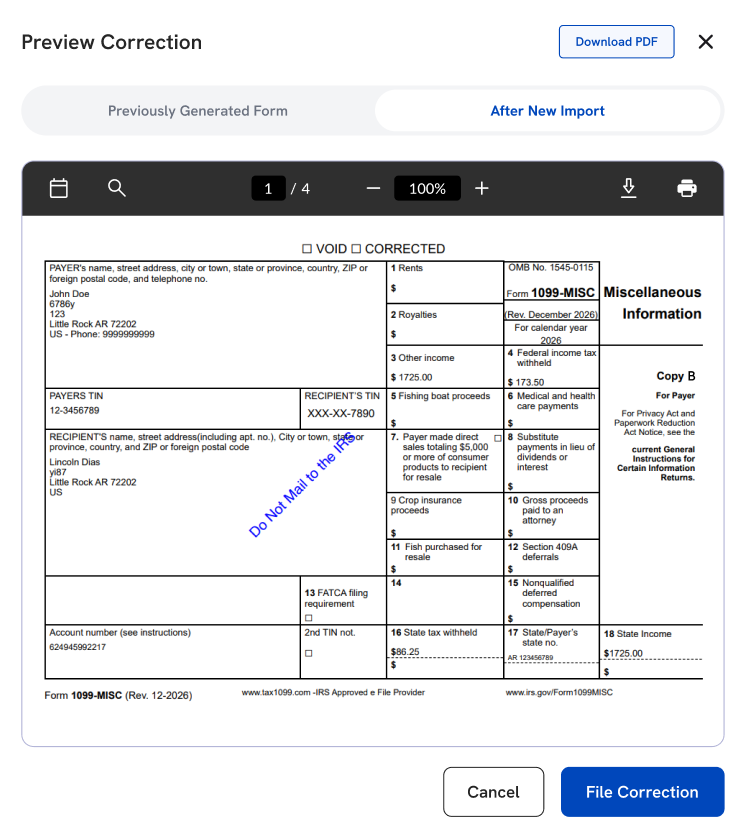
47. Review the information under Previously Generated Form and After New Import.
48. (Optional) Click Download PDF to download the correction preview.
49. Click File Correction to proceed with the correction or Cancel to close the preview.
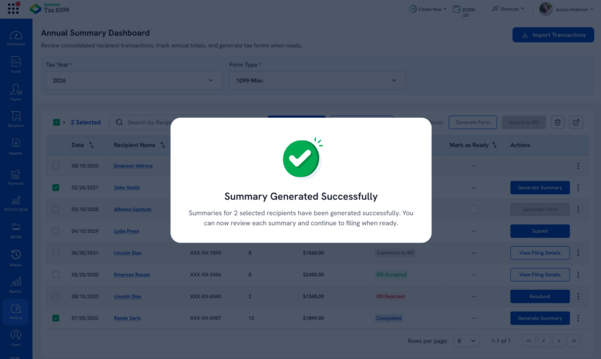
50. To generate summaries for multiple recipients, select the required recipient records and click Generate Summary.
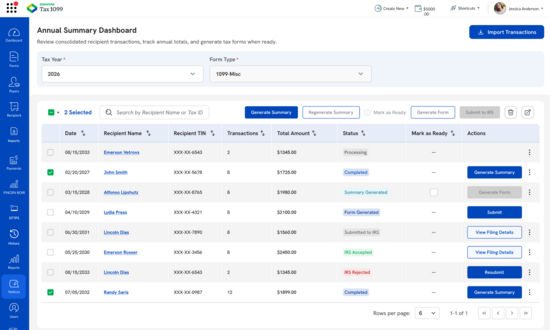
The Summary Generated Successfully message appears with the number of summaries generated.
51. Select the required recipients with generated summaries and click Mark as Ready.
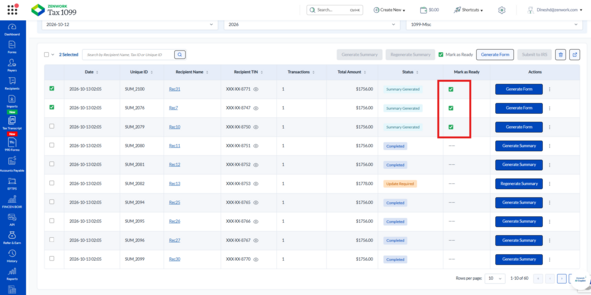
A confirmation message appears displaying the number of recipients marked as ready.
52. Click Generate Forms to generate Form 1099-MISC for the selected recipients.
The Forms Generated Successfully message appears.
53. Review the generated forms and click Submit to IRS when the selected forms are ready for filing.
54. The Annual Summary Dashboard displays the updated form generation and filing statuses for the selected recipients.